Logo
Neety wordmark as inline SVG. Props: className (size) and fill (color).
- Source: Figma export.
- Default fill = Ciruela (#2A0E2C).
Two parts: the foundations (tokens and components exactly as they are in the Figma «Library» frame, which is the source of truth) and a living guide so Neety's product team can maintain and update the site —with Claude— without losing context. The why behind every decision lives in docs/decisiones.md; code conventions in CLAUDE.md.
Introduction
This page is the manual for the Neety site, and it is generated from the site's own code: every color, button or component you see here is the one rendered in production, so it can never go stale. It has four blocks — these cards take you to each one. The first, “Working with Claude”, is the one you'll use day to day: how to connect to Claude and what to ask it to change the site. The rest is reference material.
Working with Claude
How the project reaches you (the zip), how to connect to Claude and what to ask it to change content, reuse components or add new sections — with prompts ready to copy.
Go to section ↓
Foundations
The brand identity in code: palette, typefaces, spacing, radii and shadows. Consult it to name a color or a style when requesting changes.
Go to section ↓
Components
The real pieces the site is built with, each with a thumbnail, a plain-language name and a file path. Use it to point at exactly what you want to touch.
Go to section ↓
Maintenance
Changing tokens, validating and deploying. Only for technical profiles (or for Claude itself).
Go to section ↓
Introduction
Every page of the site as a tree, with its two navigable URLs: the Spanish one and, dimmed, the English one under /en with its translated slug. Routes come from the code itself (lib/i18n.ts), so the map can't go stale. To create a new page, ask Claude and this map updates with it.
neety.com
Review copy (everything, drafts included): today neety.treseiscero.app; it moves to Neety's own test subdomain when the team sets it up.
Each page shows its two URLs: the Spanish one and, dimmed next to it, the English one under /en (with its translated slug). Both are navigable and each page links to its counterpart via hreflang.
//entemporaryAt launch, the full home will become the root and this front page goes away.
6 pages on the same template (components/pages/CasoDeUsoPage.tsx, routes app/(es)/casos-de-uso/[slug] and app/(en)/en/use-cases/[slug]); per-case copy in components/casos-de-uso/data.ts and per-language slugs in slugs.ts.
/blog/futuro-prospeccion-inteligente/en/blog/the-future-of-intelligent-prospectingnoindexcomponents/pages/ArticlePage.tsx (app/(es)/blog/[slug] and app/(en)/en/blog/[slug]): only posts with a body are generated (`body` in Sanity → `article` in components/blog/data.ts). The slug is translated in the CMS (this is one example).
/academia/en/academynoindex/academia/fundamentos-de-sales-intelligence/en/academy/sales-intelligence-fundamentalsnoindexcomponents/pages/RecursoPage.tsx (app/(es)/academia/[slug] and app/(en)/en/academy/[slug]): only resources with chapters in Sanity. Two templates: videos (player + chapters) and guides/templates/glossary (image + download form).
/eventos/en/eventsnoindex/eventos/sales-intelligence-summit/en/events/sales-intelligence-summitnoindexcomponents/pages/EventoPage.tsx (app/(es)/eventos/[slug] and app/(en)/en/events/[slug]): only events with a body in Sanity are generated (`detail` in components/eventos/data.ts, which reads from the CMS since Aug 27).
/contacto/en/contactnoindex/precios/en/pricingnoindexcomponents/pages/PreciosPage.tsx (app/(es)/precios y app/(en)/en/pricing).
/solicitar-demo/en/request-demonoindexcomponents/pages/SolicitarDemoPage.tsx (app/(es)/solicitar-demo and app/(en)/en/request-demo). 5-screen flow on a single route; target of every “Request a demo” CTA. The scheduler is embedded (NEXT_PUBLIC_DEMO_SCHEDULER_URL).
Texts from the law firm (Nov/Dec 2025) on a single template (components/pages/LegalPage.tsx). Indexable and live in PRODUCTION even while the rest stays in coming soon; the English version is our translation, pending the firm's review.
Working with Claude
The whole site lives in a GitHub repository: code, assets, documentation and this very library. This is how you get it and how to get it running on your computer — you only need to do it once.
Ask for access to the repository
The project lives at github.com/unaiarambarri/neety (private). You need a GitHub account and an invitation as a collaborator with write permission. If you won't be using GitHub, it can also reach you as a zip (a few MB; with the original assets, via WeTransfer or Drive): the content is the same and the next steps don't change.
Bring it to your computer
With Ship Studio: “Import project” and pick the GitHub repository (or the unzipped folder); it clones it and installs what's needed. With a terminal: git clone https://github.com/unaiarambarri/neety.git. With a zip: unzip it (double click on Mac, “Extract all…” on Windows). In all three cases you get a neety/ folder that already is the site.
Install what's needed (first time only)
You need Node 20 or later (free, from nodejs.org). Then, in a terminal inside the folder, run npm install (~1 minute): it regenerates the dependencies, which travel neither in the repo nor in the zip. If you imported with Ship Studio, this step is already done.
Create your .env.local with your Sanity token
Blog, events, academy and the team are read from Sanity, and the key to read them is kept out of the repository on purpose. In the project folder, copy .env.example as .env.local and fill in SANITY_READ_TOKEN. Each person generates their own token (never shared over chat): sanity.io/manage → Neety project → API → Tokens → Add API token, Viewer permission. You need to be a member of the project; if you aren't, ask for an invitation. Without this file the site starts but those pages fail with “Faltan SANITY_PROJECT_ID / SANITY_READ_TOKEN”. It is read only on startup: if you create it with the server running, restart it. It starts with a dot, so Finder hides it (Cmd + Shift + . to show it).
That's it — connect to Claude
With the folder ready, follow the steps in the next section, “Connecting to Claude”. These same instructions live in the project's README.md file, in case you need them offline.
Need to hand the project to someone without GitHub? The exact command to prepare the zip (which folders to exclude and why) is in README.md → «Si eres quien prepara el zip» — or ask Claude: “prepare the project zip so I can send it”.
Working with Claude
The site is maintained by talking to Claude: you ask for changes in plain language and it edits the code for you. No programming knowledge needed. You can connect in several ways depending on the tool you work with.
Working with Ship Studio? There's nothing to set up
If you open the project in Ship Studio, Claude and the preview come already connected: you type the request in the chat, watch the change live in the panel next to it and publish from there. The five steps below are for working outside Ship Studio: with the Claude app (the same one you chat in) or with Claude Code in the terminal, on the project folder.Open the Claude app
Claude's desktop app (Mac/Windows) — the same one you chat with — has a “Code” section for working on projects. Download it at claude.com/download. If you prefer the terminal, the claude command (Claude Code) does the same.
Open the project folder in “Code”
Pick the neety/ folder. From there it's a chat like any other, with one difference: Claude can read and edit the site's files. It also automatically reads the project instructions (CLAUDE.md), so it already knows the stack, the colors and the conventions — no need to explain anything.
Start the preview
Ask it to “start the development server” and open http://localhost:3000 in your browser: you'll see each change live before publishing. This library lives at /en/library.
Ask for the change
In plain language, like talking to a teammate: what you want, where it goes and the expected result. The three usual kinds of request —content, components, new sections— are right below with examples to copy.
Review and publish
Check the change in the preview and, once it's right, tell it “deploy the site”: Claude runs the publish script and the change is live in production in a few minutes.
Heads up: the regular chat at claude.ai (without the “Code” section) can't touch the project. Use it if you like to think through copy or prepare content, then bring the result here: “change the hero headline to this one I've prepared: […]”.
Working with Claude
The most common request: changing a text or image that already exists. You don't need to know which file anything lives in —Claude finds it— but the more precise you are about the current content and the new one, the better it comes out on the first try.
“Change the hero headline to: “Detect signals, close sooner.””
“In the menu, rename “Pricing” to “Plans” and add a “Blog” link at the end.”
“Change the “Request a demo” button copy to “Book a demo” across the whole site.”
“Replace the copy of tabs 2–4 in “Use cases” with these final texts: […]”
Tip: paste the exact current text and the new one, so there's no ambiguity. If the change spans several places, say so (“across the whole site”); and to point at a section, use its plain-language name from the catalog (“Site components”).
hero-v2.png) — Claude updates the reference automatically.“Replace the hero illustration with this image. [attach the file]”
→ Claude saves it in public/assets with a versioned name and updates the component.
“Swap the “Fagor” logo in the animation for this SVG. [attach the file]”
“Replace [degradado-01] from the library with this file. [attach the file]”
→ Uses the [name] placeholder convention that appears on the site.
“The logo I uploaded looks distorted; fix it so it keeps its proportions.”
→ Claude fixes the SVG's preserveAspectRatio (a known gotcha).
Formats: logos and icons as SVG; photos as optimized PNG/JPG (Claude converts them to the final format). Pending image slots are marked with a [name] label — ask Claude to replace it with your file.
The site has been bilingual since Aug 27, 2026: Spanish lives at the root and English under /en with translated URLs (/en/platform, /en/use-cases/…). Every text exists in both languages in the same place (a copy({ es, en }) object next to its section), so a copy change can be requested for one language or both. The footer selector jumps to the same page in the other language, and visitors landing on the homepage from outside Spain get English (only Spain stays in Spanish). The blog and team are translated in the Sanity Studio: each article has linked ES and EN versions.
“Change the English hero subtitle to: “Know which accounts matter today.” (leave the Spanish as is).”
“Review the English translation of /en/platform and adjust the tone: more direct, shorter sentences.”
“Create the /team page with this content […]”
→ Claude creates it in both languages (Spanish route and under /en) and cross-links them; ask it for the translation or hand it yours.
“Translate the article “Cómo priorizar leads” I just published in Sanity into English.”
→ In the Studio: the article's language menu → “English”; Claude can fill in the translation with the seeding script if you ask.
Heads up: we did the English translation ourselves (B2B en-US tone) and it's pending your review, same as the blog's placeholder copy.
Working with Claude
The blog and the “About Neety” team don't live in the code: they live in a content manager (Sanity) with its own panel, the Studio, at neety.sanity.studio. Sign in with the account we invited you with. Everything else on the site (page copy, images, sections) is still Claude's job.
In the Studio (you)
With Claude (code)
It's the fast lane if you don't feel like wrestling the editor: you hand Claude the text (or the topic) and the image, and Claude leaves the article as a draft in the Studio. Claude never publishes: you publish after reading it, with the usual “Publish” button. Under the hood it uses studio/scripts/new-post.mjs, which turns a Markdown file into an article with all its fields.
What Claude needs from you
What Claude does
Example request
“Create a blog article with this text: [paste]. The main image is ~/Desktop/portada-leads.png (a panel with buying signals). Tags: Sales, AI Agent. Byline: Equipo Neety. Leave it as a draft in Sanity.”
For English, after publishing the Spanish: “Make the English version of article ‘X’ and leave it as a draft linked to the Spanish one.” Claude creates it already linked (the Studio's “Translations” menu), just as if you had created it by hand.
For this to work, the computer you use with Claude needs to have signed in to Sanity from the terminal once (cd studio && npx sanity login, with the same Studio account). Claude will tell you if it's missing.
neety.treseiscero.app; later, Neety's own test subdomain), which is what gets rebuilt with each “Publish”. Launching the blog on neety.com is a decision (you ask Claude), not a Studio button; from that day on, “Publish” updates neety.com directly.If it doesn't show up: did you hit Publish (not just save)? Have 2 minutes passed? Is the blog live on neety.com yet, or still only on the review copy? If all that checks out, ask Claude: “Article ‘X’ is published in Sanity but doesn't show on the site.”
| Field | Guideline |
|---|---|
| Title | One line. Cards clamp it to two. |
| Slug (URL) | Generated from the title (“Generate”). Don't change it once published: it's the article's address and shared links would break. |
| Standfirst | The summary on the cards. ~160 characters max: beyond that it clamps to three lines. |
| Main image | Upload the large original (minimum 1208 × 768, ideally 2400 wide): the site crops it to each slot on its own. The hotspot lets you choose which part must never be cropped out. Alt text is required: describe what's in the picture. |
| Tags | The first one is the primary tag (the only one visible on the card). A new tag appears in the blog filter on its own; create it under “Etiqueta” before using it. |
| Byline | A team member. To sign as the company, “Equipo Neety”. If someone's missing, create them under “Miembro del equipo” (and untick “Mostrar en Sobre Neety” if they shouldn't appear in the grid). |
| Date | Orders the listing (newest first) and shows on the article page. A past date is fine. |
| Article standfirst | The one in the article header; longer than the cards' (2–3 sentences). If left empty the short one is used. |
| Article cover image | Optional. If the article has its own art, here; otherwise the page reuses the main image. |
| Reading minutes | Optional: if left empty it's calculated automatically. |
| Body | There are only four designed pieces, and they're enough: section heading (each one opens a section and feeds the article's side index — add one every 3–5 paragraphs), paragraphs, list, pull quote and figure (image + alt text + caption). Bold and italics yes; no other styles, on purpose. |
| Search description | Optional, 1–2 sentences. If empty, the standfirst is used. |
The site has two versions (Spanish at neety.com/…, English at neety.com/en/…) and each reads from the Studio only what's in its language. There's no automatic translation: whatever doesn't exist in English doesn't show in English.
One document per language
Shared by both languages
/en/blog/…). The main image can be reused as is; the alt text goes in English.Why the link matters: it's what makes the article page's language button jump to that same article in the other language, and what tells Google both URLs are the same content ( hreflang tags), so it shows each visitor their language's version instead of treating them as duplicates. Translate by hand or ask Claude (“translate article ‘X’ into English”): it writes it and leaves it already linked.
Blog front page
One document per language with the featured article (the big card) and exactly 4 for the list next to it, in the order shown. If not configured, the site uses the most recent one and the next four.Team member
Name, role (and English role), grid order and portrait. The “this could be you” card is added by the site itself at the end. Portraits: the current ones have the brand gradient as background; a new one uploaded as-is would come out without it — hand the photo to Claude to compose it, or upload it pre-composed (300 × 276, at 3×).“The article “Cómo priorizar leads” is published in Sanity but doesn't show on neety.com.”
→ Claude checks the latest deploy (GitHub Actions) and the Sanity webhook.
“Compose this portrait for the team card with the brand gradient and upload it to member “Ana Vega”. [attach the photo]”
“Add a “YouTube video” field to articles, rendered below the standfirst.”
→ Touches the Studio schema and the site at once; Claude deploys the Studio and explains the new field.
“Switch the blog listing to 9 articles per page, like the design.”
“Launch the blog on neety.com.”
→ It's the decision to take the blog out of “coming soon” mode: Claude removes the production exclusion and deploys.
“Invite [email] to the Sanity Studio as an editor.”
→ Done from sanity.io/manage → Neety project → Members (Claude walks you through it; you need to be an admin).
Working with Claude
The site is made of reusable pieces (see “Site components”). When you ask for something new, name the existing piece or style it should resemble: Claude reuses what's already there instead of inventing something different, and the site stays consistent.
“Add a secondary button saying “See use cases” next to the hero's main CTA.”
→ Reuses the button component, Outline variant, with the brand tokens.
“Add one more metric to the “Why Neety” section: 3x qualified meetings.”
→ Adds an entry to the METRICS array; the number animates on its own with RollingNumber.
“Add one more logo to the “Client logos”: this Acme SVG. [attach the file]”
→ One more entry in LOGOS; it appears in the desktop grid and the mobile marquee.
“Use the Naranja Core color and the H2 heading style for the new section's title.”
→ Applies the tokens and type scale documented in Foundations.
Tip: name the pieces as they appear in this library —the token (Naranja Core, Berenjena), the button variant (Primary, Outline) or the component's plain-language name (Signal feed, Mobile menu, Before / After…)—. Every component card has chips to copy the name in one click.
Working with Claude
To grow the site —a new section or a whole page— describe what it contains, where it goes and which part of the site it should resemble. Claude builds it with this library's colors, typefaces and components, so it looks made by the same team.
“Add a testimonials section to the home, between “How it works” and “Integrations”: 3 quotes with name, role and company, in the site's white-card style.”
→ New section built with the existing tokens and patterns, in its place on the home.
“Create the Pricing page with 3 plans using the pill button and the existing cards, and link it in the menu and footer.”
→ New /pricing page + navigation links + its card in this library.
“On /en/platform, add an accordion FAQ section, like the “How it works” one but with a cream background.”
“Create the Contact page with a simple form (name, email, message) on a white card, in the style of the /about-neety hero, and link it in the menu and footer.”
→ One of the site map's “pending” pages stops being pending.
Tip: when it's done, ask it to document the new section in this library (and in the site map if it's a page): the next change will start from an up-to-date catalog.
Working with Claude
A new page isn't designed from scratch: it's assembled from the same pieces, margins and typography as the others, following a fixed recipe Claude already knows (it's in CLAUDE.md). This is what to ask for, what Claude will do and what to check before signing the page off.
The same structure, top to bottom
The best model: /pricing
It's assembled almost entirely from other pages' pieces: the /platform hero, the notched cards, the rail and CTA from “How it works”, the FAQ accordion from the use cases and the “Diagnosis” from the home. Only two components are its own. When you ask for a page, say “like /pricing” and name the sections of this library you want reused: that's how the new page looks made by the same team.
One page, two languages
The body lives in components/pages/XPage.tsx; the /nombre and /en/name routes (translated slug) are two minimal files that call it with the language. Every text goes in copy({ es, en }).
Complete metadata
Title and description per language, hreflang (alternates(), without it the footer language switcher can't jump) and its own Open Graph (withOpenGraph, otherwise sharing it shows the home's).
Navigation links
If it goes in the menu or the footer, an entry in nav-data.ts and Footer.tsx, and the route registered in ROUTES (lib/i18n.ts) so internal links know it.
Its place in this library
A node in the site map and, if it brings a new component, its card in “Site components”.
A draft until it's launched
While the site is in “coming soon”, the new page carries noindex and sits in the production exclusion list of scripts/deploy.sh: visible on the review copy, not on neety.com. After launch, neither.
A note if something had to be decided
Any non-obvious choice (a different background, a section that didn't exist) goes in docs/decisiones.md with its why.
Claude follows these rules on its own; if a new page breaks one, ask it to fix it before publishing:
@theme block, never loose.TransitionLink: it's what triggers the brand curtain between pages.“Create the /partners page like /pricing: hero with the brand gradient, a logo grid like “Client logos”, the FAQ accordion and the “Request a demo” CTA. Link it in the footer under “Company”. In both languages: /partners and /en/partners.”
→ New page from existing pieces, es/en routes, hreflang, Open Graph, navigation links and its node in this library's site map.
“Check that /partners follows the CLAUDE.md conventions: tokens, TransitionLink, two languages, hreflang and Open Graph. Fix whatever is missing.”
→ A control pass before publishing; Claude lists what it corrected.
“Compare /partners with /pricing on desktop and mobile and adjust whatever doesn't follow the same pattern of margins, typography and spacing.”
“Take /partners out of draft: remove the noindex, drop it from the production exclusion list and deploy to neety.com.”
→ Only after launch; production deploys manually and Claude confirms with you first.
Working with Claude
A few rules help Claude get it right the first time and keep the site consistent.
Claude already knows the project
On opening it reads CLAUDE.md: stack, tokens and conventions. No need to explain it each time.
Be specific: what, where and result
“Change X to Y in the hero” works better than “improve the hero”.
Reference this library
“Use the Naranja Core token”, “the Outline button”, “the card style from How to use”.
One change per request
Small, reviewable changes. Easier to see the result and roll back.
Review in the preview
Check the change in the preview before asking for a deploy.
Decisions → document them
If it's a design decision, ask it to note it in docs/decisiones.md.
Foundations
Defined in app/globals.css (the @theme block). Editing there is the only way to change the palette; Tailwind generates the utilities (bg-naranja, text-plum…). Opacities (bg-plum/20) generate the tints.
Naranja Core
#FE8238
Azúl bebe
#A7C5F9
Berenjena
#431B44
Ciruela
#2A0E2C
Mint claro
#EBFFF6
Base Cálida
#F8F7EC
Gris Tecnológico
#F5F7F9
Blanco
#FFFFFF
Naranja Core
Azúl bebe
Berenjena
Ciruela
Foundations
Headings in Bricolage Grotesque (font-display), body copy in Switzer (font-sans, the body default) and Inter for long-form text. Each style has its desktop and mobile size.
H1 · XL
Desktop 112px · Mobile 64px · 120%
H1 · L
Desktop 80px · Mobile 48px · 120%
H1 · M
Desktop 64px · Mobile 40px · 120%
H2
Desktop 48px · Mobile 32px · 120%
H3
Desktop 40px · Mobile 24px · 120%
H4
Desktop 32px · Mobile 20px · 120%
H5
Desktop 24px · Mobile 16px · 120%
H6
Desktop 16px · Mobile 14px · 120%
Large · Far far away, behind the word mountains, live the blind texts.
Desktop 24px · Mobile 20px · 150%
Medium · Far far away, behind the word mountains, live the blind texts.
Desktop 20px · Mobile 18px · 150%
Regular · Far far away, behind the word mountains, live the blind texts.
Desktop 16px · Mobile 16px · 150%
Small · Far far away, behind the word mountains, live the blind texts.
Desktop 14px · Mobile 14px · 150%
Tiny · Far far away, behind the word mountains, live the blind texts.
Desktop 12px · Mobile 12px · 150%
Foundations
Spacing token scale (gaps, paddings and margins). The bar shows the desktop value; the label reads desktop / mobile. Structure (container gutters) and Paddings derive from this same scale.
xtinytinyxxsmallxsmallsmallmediumlargexlargexxlargehugexhugexxhugeEvery home section uses the same vertical-padding scale on its root <section>: py-12 md:py-16 lg:py-28. Since each section carries padding above and below, the real gap between sections is the sum: 96px on mobile, 128px on tablet and 224px on desktop (the design value).
Horizontal padding: none on mobile —the p-4 on the <main> already provides the design's 16px— and md:px-10 from tablet up. Adding an extra px-* on a section misaligns its content against the other sections and narrows the usable space on mobile.
Foundations
Corner radii (Tiny → XXXLarge) and the system's three shadows.
Tiny
4px
XSmall
6px
Small
8px
Medium
12px
Large
16px
XLarge
20px
XXLarge
24px
XXXLarge
32px
Small
Medium
Large
Foundations
Every progress bar and rail on the site carries the same gradient: the full brand gradient (cream → orange → aubergine → blue → white) compressed into the piece. It lives in app/globals.css as .rail-gradient-x (horizontal), .rail-gradient-y (vertical) and .plataforma-rail-progress (vertical with a height animation). Never build a new one with bg-gradient-to-r.
The gradient stretches with the bar (the whole range is visible at any progress): animate the width, not a scaleX. Background track bg-plum/10 (or no track, as in the /platform hero tabs).
.plataforma-rail-progress).ComoAyuda, .rail-gradient-y).DemoFlow).ArticleSidebar).Base components
The site's real CTA is components/PillCta.tsx: a pill where the label rolls upward on hover while the dot turns into an arrow. The animation is 100% CSS (PillCta.module.css). The examples below are the real component — hover them to see it.
Primary — “Request a demo”
Outline — “Learn more”
Primary · big — footer CTA
Primary · block — mobile menu
Request a democomponents/RequestDemoButton.tsx is the “Request a demo” wrapper used by Hero, Metrics, How, Footer and the mobile menu — change the copy or the href there once for the whole site.href (or with “#”), RequestDemoButton goes to the current language's “Request a demo” flow (ROUTES.solicitarDemo).NavCta.module.css, it only swaps the text on hover).Base components
The logo (components/Logo.tsx) accepts a fill prop for the variants. The favicon uses the brandmark over the brand gradient.
Product
Every real component on the site, in tabs by page (“Shared” = used by all of them). Each card carries a real thumbnail, a plain-language name as its title and copy chips: click a chip to copy the plain name, the technical one or the file path, and paste it into your prompt —“change the second step of the How it works”, “add a logo to the Client logos”— so there's no ambiguity. The catalog lives in components/library/catalog.tsx; documenting a new page means adding its entry there.
Shared (all pages)
Base pieces
Neety wordmark as inline SVG. Props: className (size) and fill (color).
Brand dot whose halo breathes with GSAP. Leads the eyebrow of almost every section.
The base pill button (see the Buttons section) and its “Request a demo” wrapper used across the site.
Baby-blue pill at 10% with the card's tag. The same piece on /blog and /events cards.
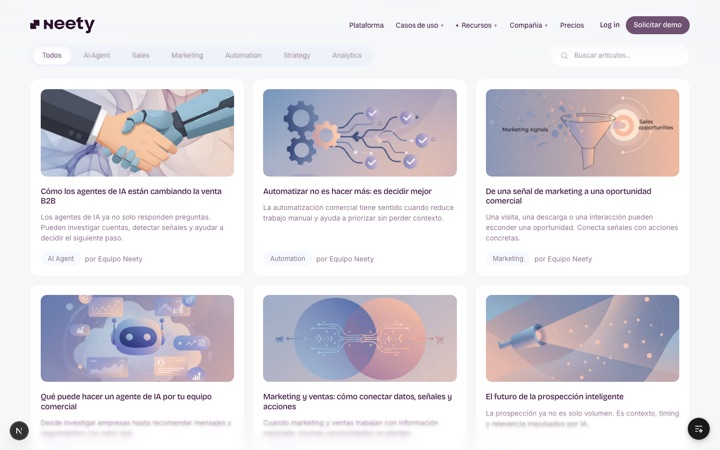
Aubergine square with a “+”. In Figma it's painted on a single card per block: it's the card's HOVER state.
Odometer-style counter: each digit rolls and lands on entering the viewport. Used by the metrics.
Navigation
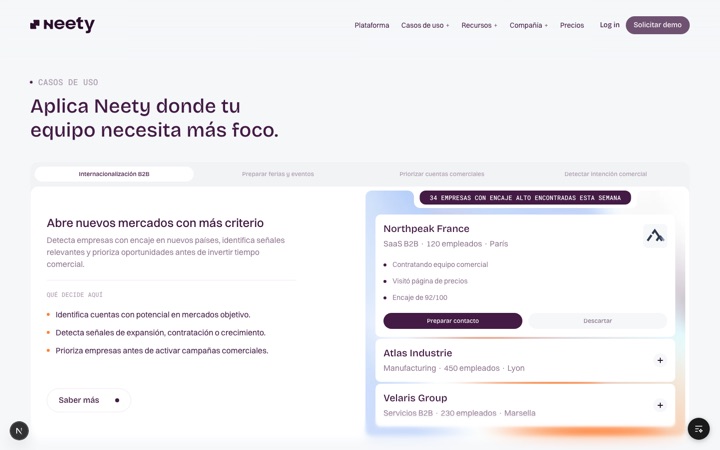
Tab bar with the brand's white “liquid” pill: on tab change it travels with a stretch proportional to the distance and recovers its shape on arrival (same physics as the navbar hover).

Desktop bar: logo, links with “liquid” mega-menus (GSAP) and CTAs. NAV_ITEMS is the navigation's source of truth.
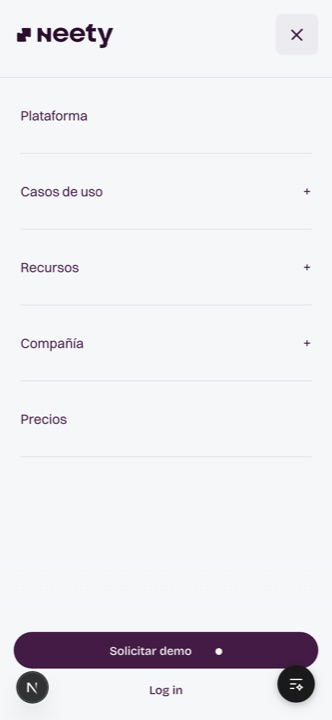
Full-screen mobile/tablet menu overlay with drill-down folder navigation, opened from the hamburger button.
Sticky container (h-0, overlay) keeping the bar fixed above all sections. Wraps NavBlur + Navbar.

Progressive blurs: NavBlur appears behind the navbar on scroll; BottomBlur softens the viewport's bottom edge.
Veil with the brand gradient (the Loader's) fading over the page on navigation: it covers with opacity, the new route mounts underneath and it dissolves. Subtle — no edges or sweeps; the blobs drift while it lasts.
Maintenance
Reference for changes that touch the system's foundations (for more technical profiles, or for Claude).
@theme block in app/globals.css. The whole site and this library update on their own.components/ and add it to the “Site components” section (components/library/catalog.tsx) so it's documented.copy({ es, en }) (lib/i18n.ts); a new page is a components/pages/XPage.tsx with lang plus two thin routes (app/(es) and app/(en)/en) with alternates() in the metadata — without hreflang the footer selector can't jump. Country auto-routing in functions/_middleware.ts. See decision 2026-08-27 · i18n.studio/schemaTypes/; after changing it, npx sanity deploy from studio/. The site reads it at build time via components/blog/data.ts and components/sobre/team.ts (sections know nothing about Sanity). Publishing in the Studio → webhook → GitHub Actions → review copy; production only manually from Actions. CI tokens live in the repo secrets; locally, each person has their own in .env.local (see “Receiving the project”). Plan and status: docs/cms-sanity.md.docs/decisiones.md with its why.npx tsc --noEmit. Don't run npm run build while Ship Studio's dev server is active.main updates the review copy on its own (GitHub Actions). Production (neety.com) is always manual: Actions → “Deploy” → Run workflow → prod, or ./scripts/deploy.sh prod from the terminal. Details in CLAUDE.md §Deploy; launch checklist in docs/lanzamiento.md.NEXT_PUBLIC_CONTACT_ENDPOINT / NEXT_PUBLIC_ACADEMY_ENDPOINT and the scheduler embeds via NEXT_PUBLIC_DEMO_SCHEDULER_URL.youtubeId) and downloadable files are still missing.